Send on WhatsApp and get it accepted
A PDF on WhatsApp tells you nothing after you send it. A link tells you when your client opened it, and lets them accept with their name or tell you what to change, from their phone and without an account.
1. Send the quotation
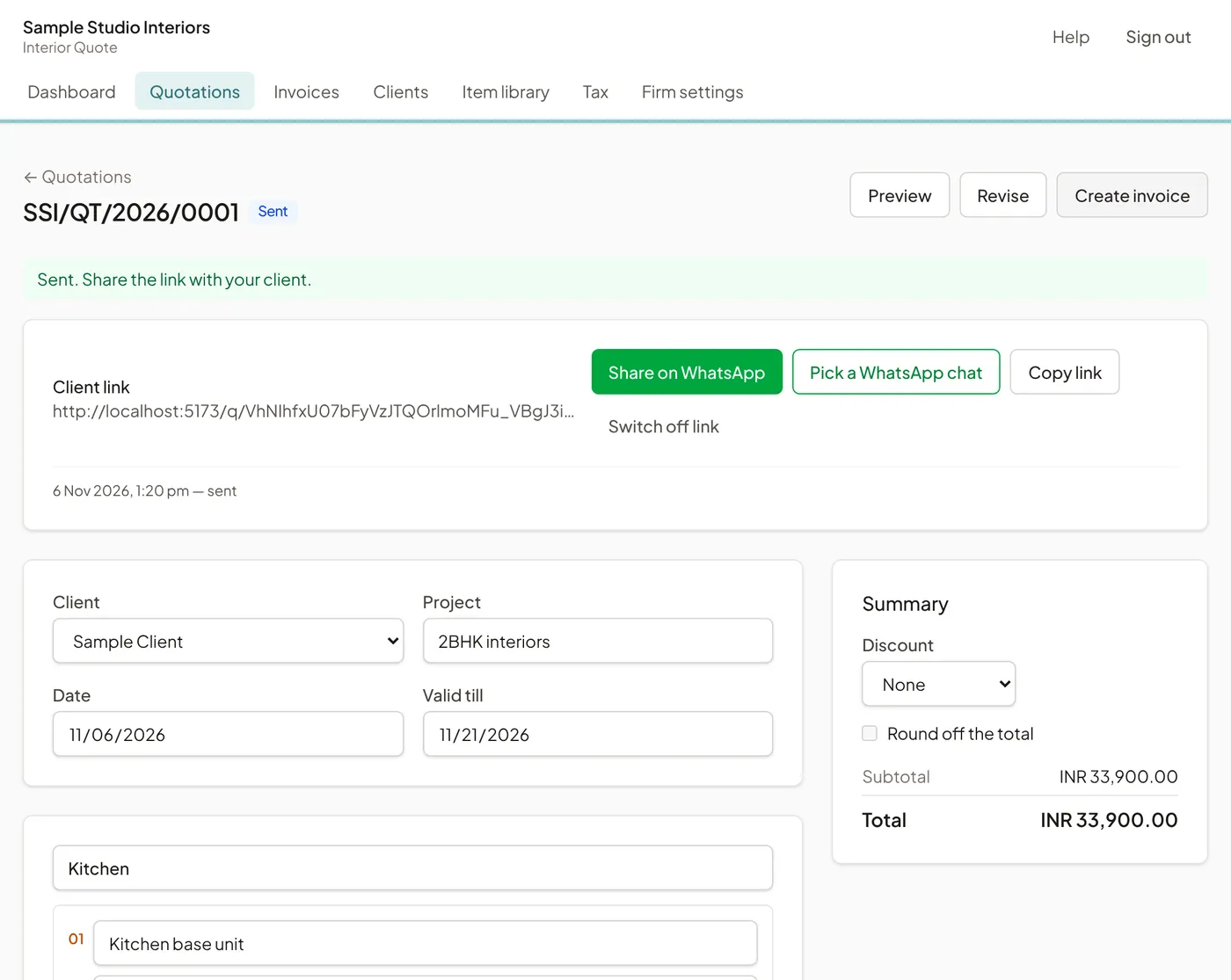
Open the saved draft and choose Send. You are asked to confirm, because sending locks this version: what your client sees cannot change afterwards. If you need to change something later, you make a revision (step 5).
After sending, a Client link panel appears with three options:
- Share on WhatsApp opens WhatsApp with a short message and the link, addressed to the client’s Phone / WhatsApp number. Include the country code in the client’s number, for example +91 or +968, so it opens the right chat (a 10-digit Indian number gets +91 added for you).
- Pick a WhatsApp chat opens WhatsApp with the same message and lets you choose the chat. Use it when WhatsApp says the client’s number isn’t on WhatsApp, then correct the number on the client.
- Copy link, to paste into email, SMS or any other app.
- Switch off link, if it was sent to the wrong person. The old link stops working at once. Create new link gives you a fresh one.
2. What your client sees
The link opens the quotation as a page that fits a phone screen, with your logo, colours, the lines, tax, payment stages, bank details and terms. At the top are Download PDF ,Accept quote and Request changes.
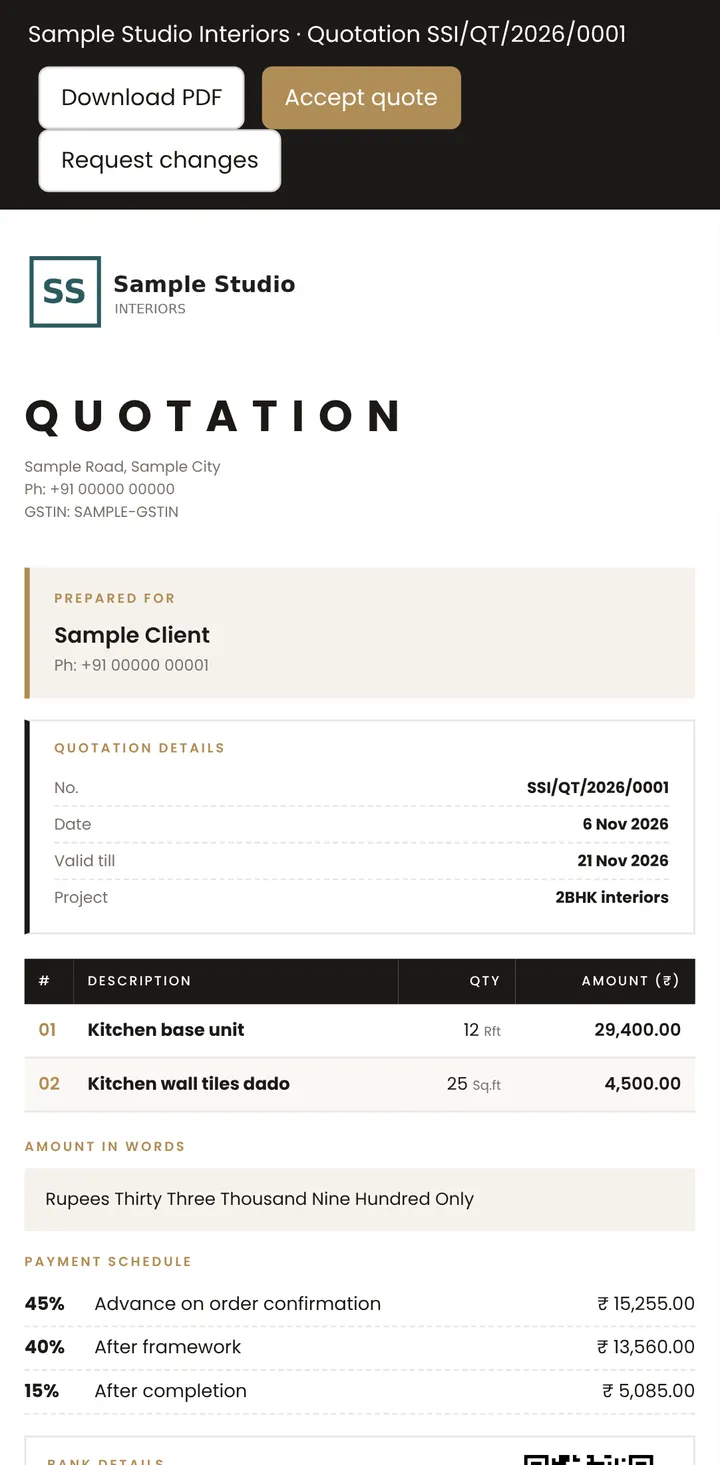
The first time your client opens the link, the quotation’s status changes from Sent to Viewed, so you know it has been seen.
3. Accepted or changes requested
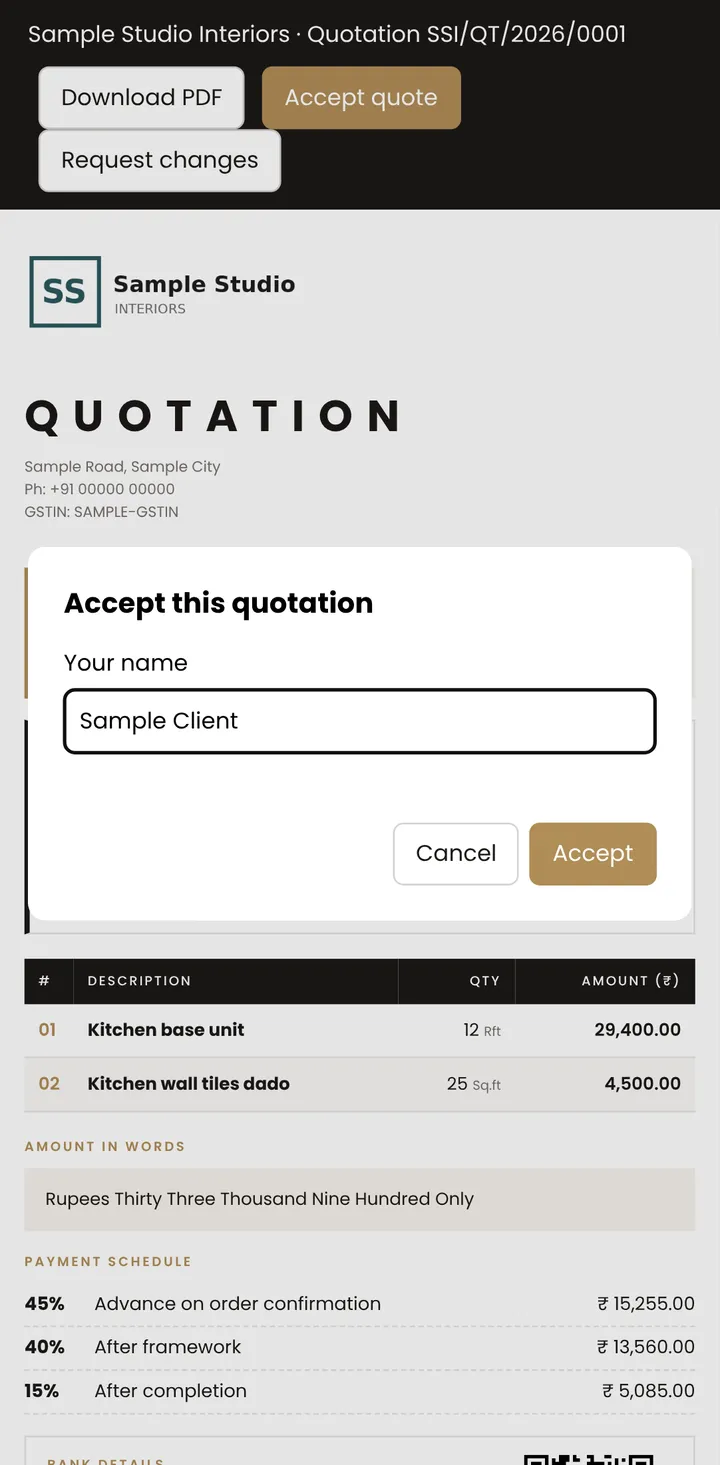
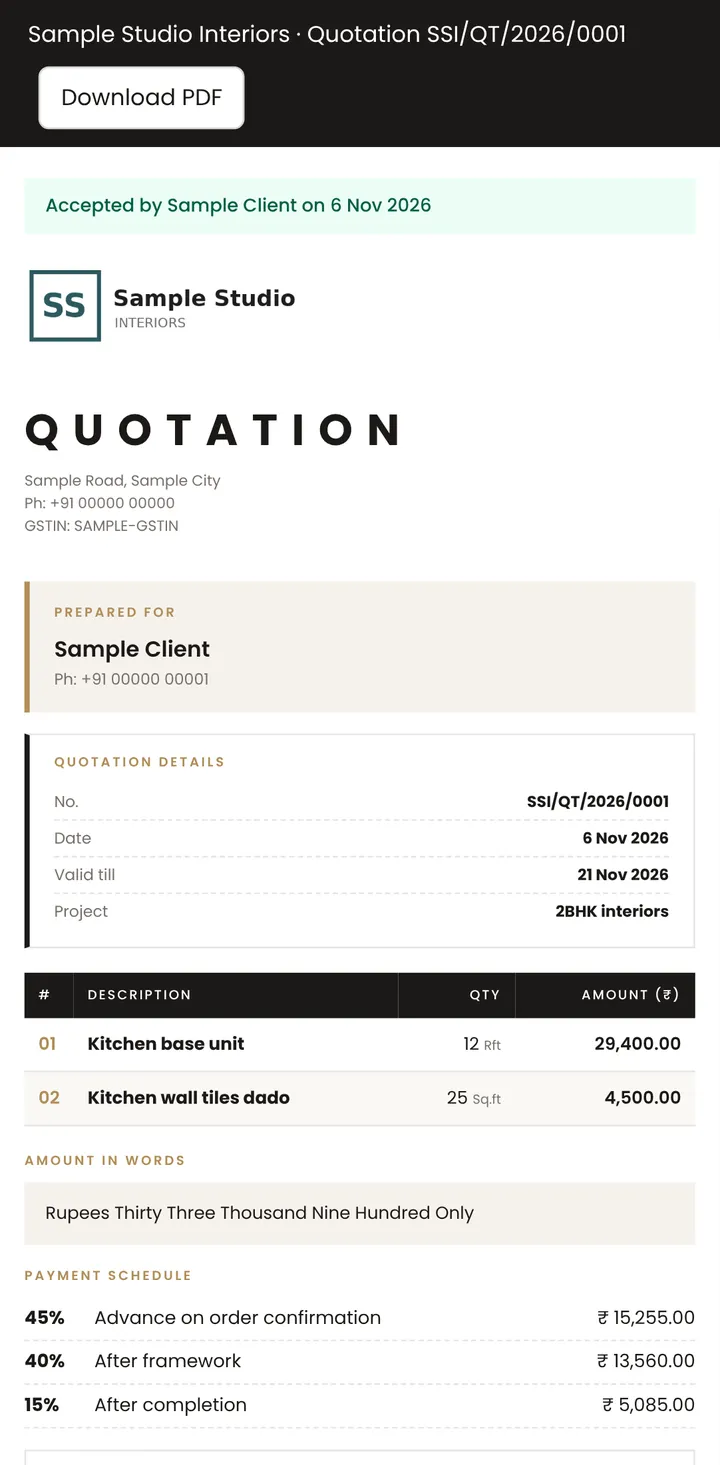
To accept, your client types their name and chooses Accept. The quotation shows who accepted it and when, the status becomes Accepted, and you get an email.
If your client chooses Request changes and writes what they want changed, you get an email with their message and a link to the quotation.
4. Track your quotations
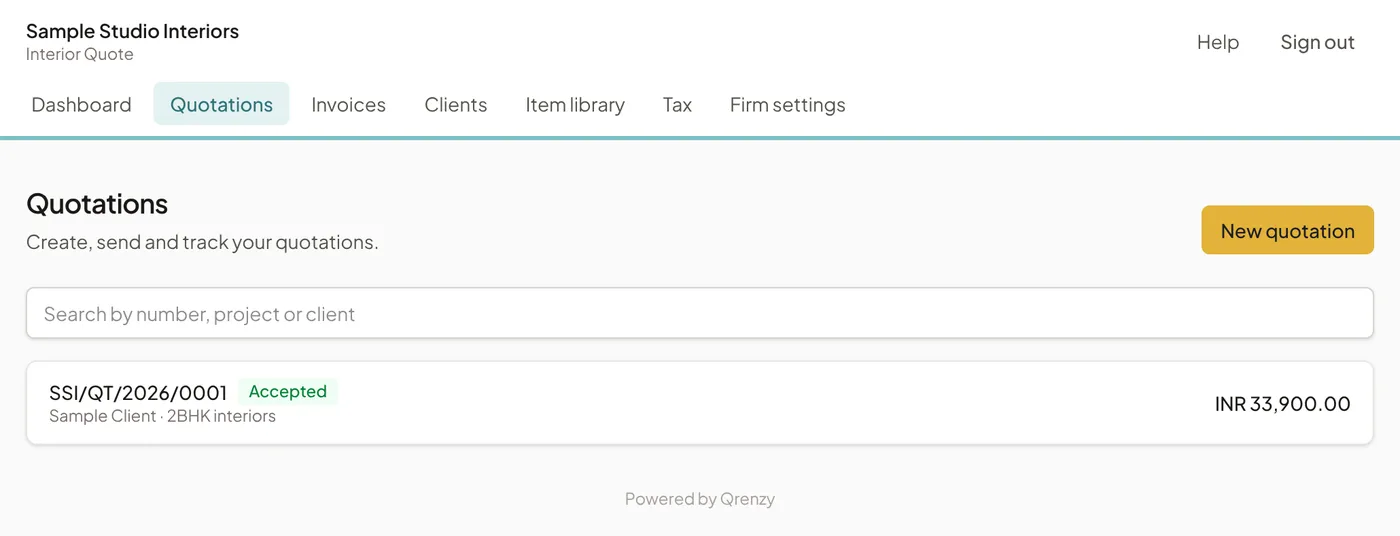
Quotations lists every quotation with its client, total and status: Draft, Sent, Viewed, Accepted or Expired. A quotation that was sent but not accepted by its Valid till date shows as Expired, and the client can no longer accept it from the link. The Dashboard shows how many you sent this month, their value and how many were accepted.
5. Make a revision
To change a sent quotation, open it and choose Revise. This starts version 2 as a draft. Your client’s link keeps showing the version they already have until you choose Send revision; after that, the same link shows the new version. Earlier versions are kept as they were sent. While a revision is in progress, your client can still read the old version but cannot accept it; they are asked to wait for the updated one.
6. Save as PDF
Quotations are laid out for A4. You can use Preview then Print / Save PDF in the app, and your client can use Download PDF on their link. Both open the browser’s print window; choose Save as PDF as the printer. On Android, choose Save as PDF from the printer list; on an iPhone, use the Share button in the print preview to save to Files.
Next
Keep a copy of your work: see Back up and export your data.