Invoices and payments
The job is accepted, the advance is on its way, and now you need an invoice that matches the quotation line for line. Interior Quote builds it from the quotation your client saw, so the amounts never drift, and keeps a running balance as payments come in.
1. Create an invoice from a quotation
Open a sent quotation and choose Create invoice. The invoice takes every line, the tax and the total from the version your client received, and gets the next number in your invoice series, starting at INV-0001. If the quotation has not been accepted yet, you are asked to confirm first.
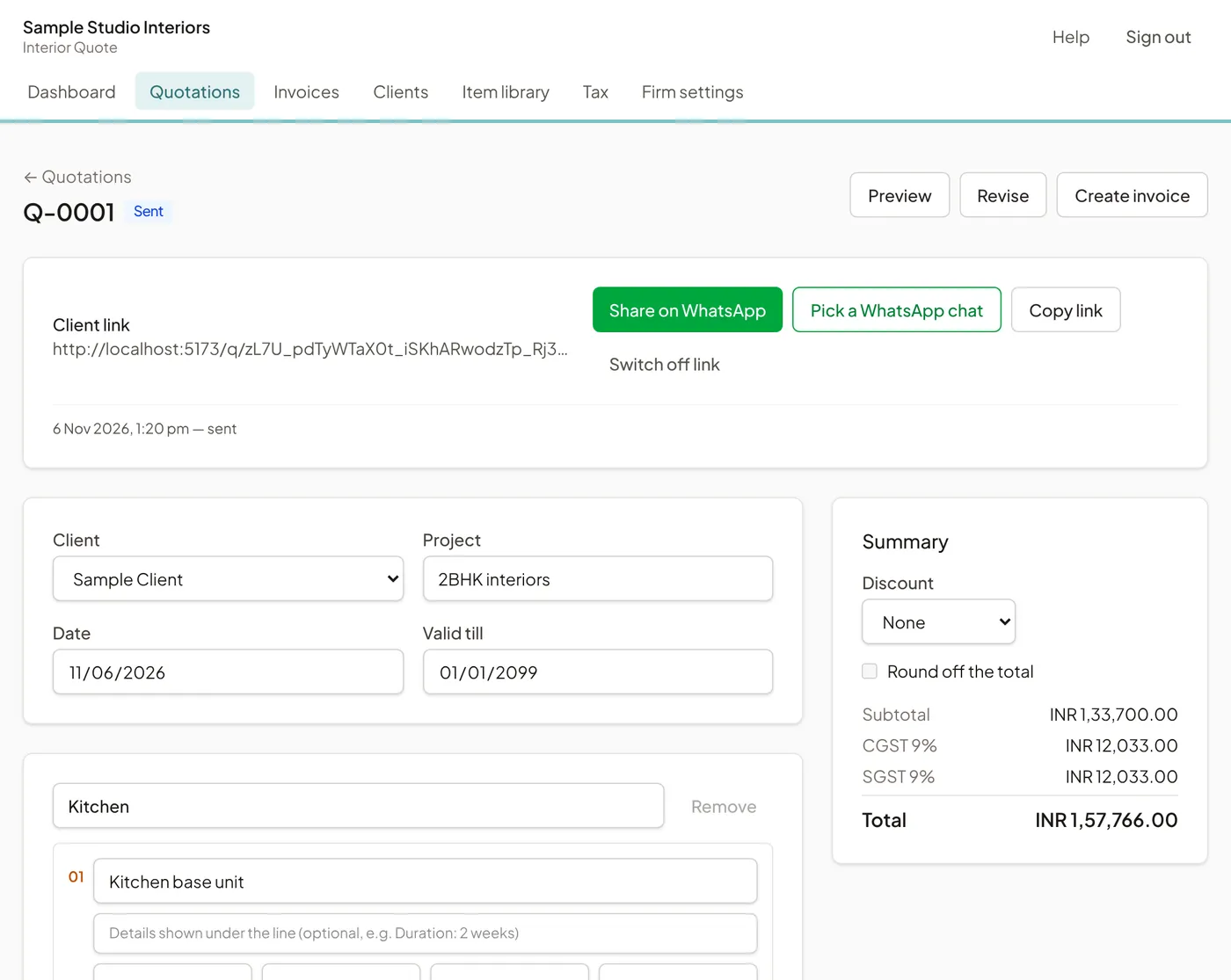
Each sent version can have one invoice. Choosing the button again opens the same invoice instead of making a second one, and the quotation then shows Open invoice.
2. Set the title, dates and notes
Under Invoice details, set the Document title (INVOICE by default, or TAX INVOICE if that is what you issue), the Invoice date and the Due date. Anything in Notes on the invoice (optional) is printed on it. Choose Save invoice details.
3. Record payments as they arrive
Under Record a payment, enter the Date, the Amount and the Mode (Bank transfer, UPI, Cash, Cheque, Card or Other), and a Reference (optional) such as the UTR or cheque number. Choose Record payment. Fill balance puts the whole balance due into the amount for the final payment.
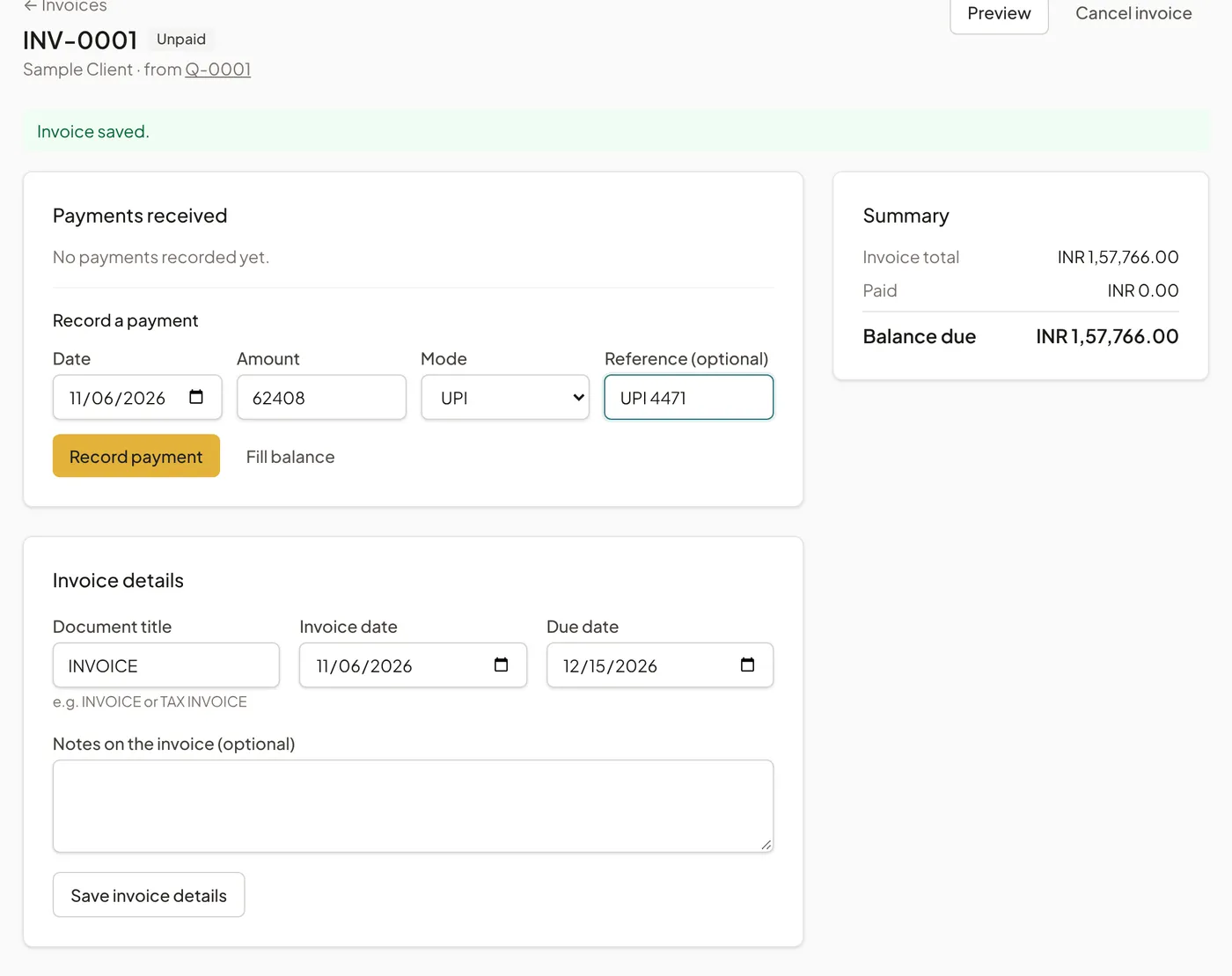
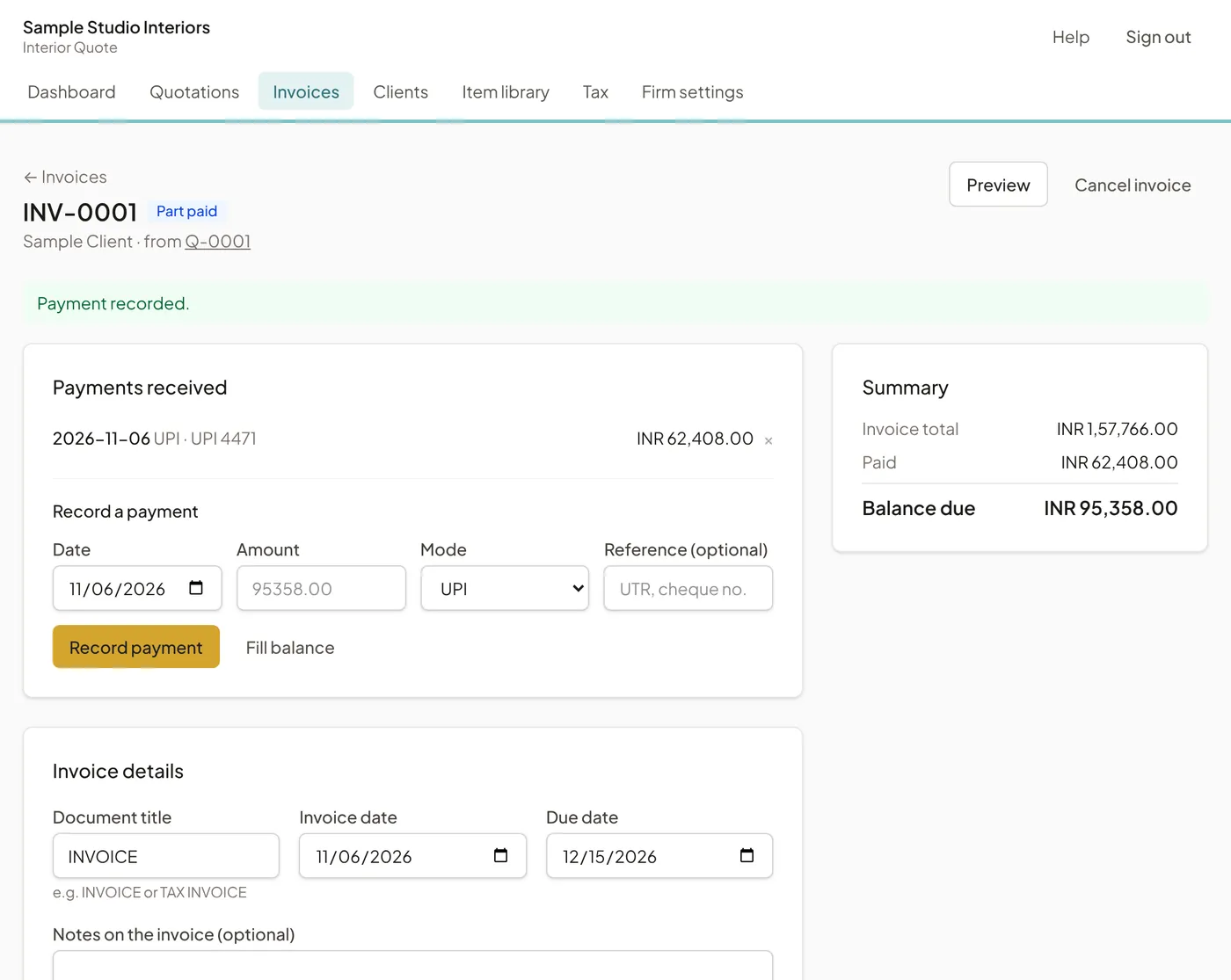
The Summary shows the invoice total, what has been paid and the Balance due. A payment larger than the balance is refused, so the balance never goes below zero. Recorded a payment by mistake? Remove it with the × next to it.
4. Invoice status
- Unpaid: no payments yet.
- Part paid: some payments, balance still due.
- Paid: the balance is zero.
- Overdue: the due date has passed with a balance still due.
- Cancelled: kept for your records, closed for payments.
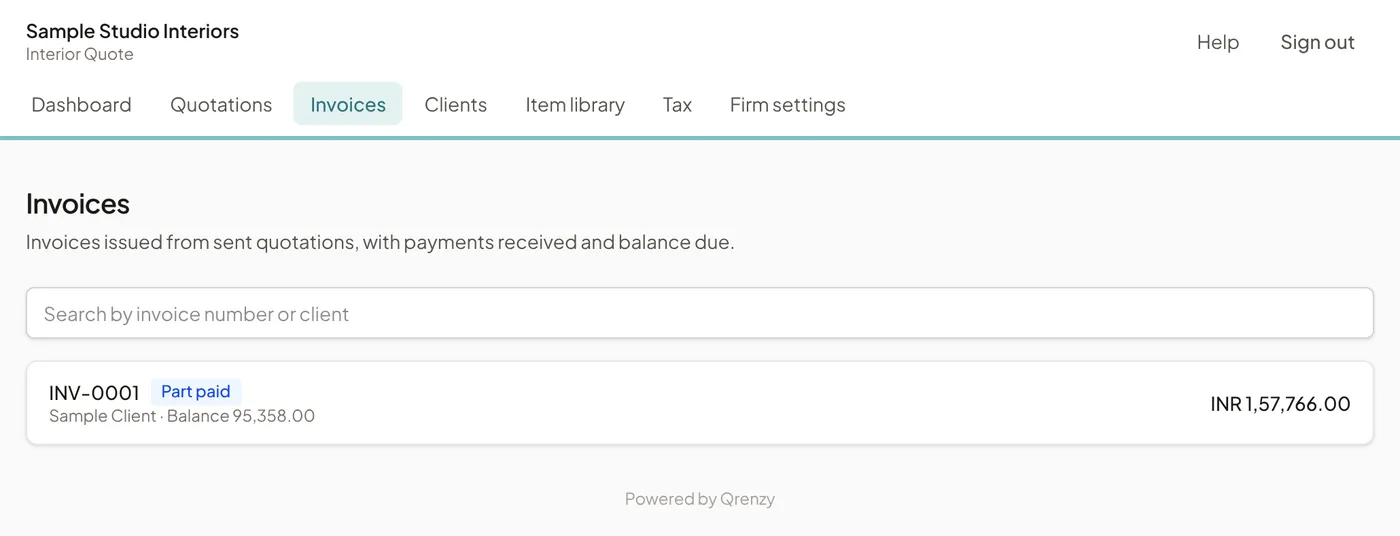
Invoices in the menu lists every invoice with its status and balance.
The Dashboard adds up your invoices in your firm’s currency: Invoiced this month, Received this month (payments recorded with a date in this month), Balance due on every open invoice, and Overdue, shown in red when a due date has passed. Cancelled invoices are left out.
5. Save or send the invoice as PDF
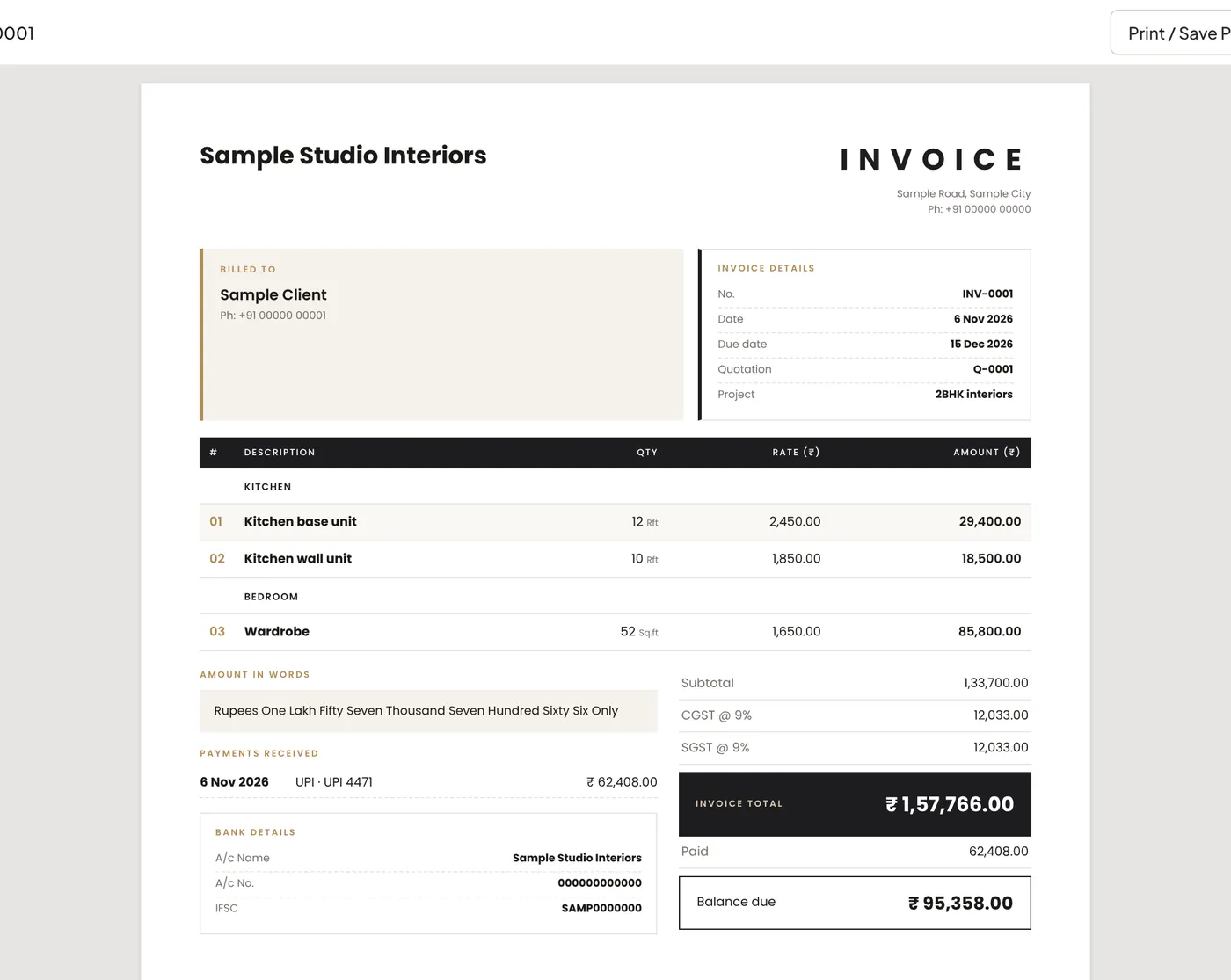
Choose Preview, then Print / Save PDF and pick Save as PDF. The invoice uses the same layout as your quotation, with Billed to, the due date, the quotation number, the payments received and the balance due. Send the PDF on WhatsApp or by email.
6. Cancel an invoice
Choose Cancel invoice to close it. It is never deleted: it stays in the list marked Cancelled, and its document shows that it was cancelled. Restore invoice reopens it.
GST and VAT invoices: what this does and does not do
The invoice shows your tax ID, your client’s tax ID if you added one, each tax line with its rate and amount, and the total in words. It does not generate a GST e-invoice (IRN and QR code from the government portal) and does not print HSN or SAC codes yet. If your turnover requires e-invoicing, or you need those codes, check with your chartered accountant before using these invoices for GST filing. The same applies to VAT rules in your country.
Invoices are part of the Pro plan. During the pilot every firm can use them for free; see Your plan.