Create your first quotation
A quotation built in Excel can go wrong in two quiet ways: a total that no longer matches its lines, or payment stages that don’t add up. Here you only type quantities and rates, and the app does every sum, the tax, the stages and the amount in words. Finish Getting started first so your logo, terms and item library are in place.
1. Start a quotation
Open Quotations and choose New quotation. It gets the next number from your number format straight away. At the top, choose the Client, type the Project (for example 2BHK interiors) and check the Date and Valid till dates.
2. Add rooms and lines
Each quotation starts with one section. Name it after the room, such as Kitchen, and use + Add room / section for the next room. Inside a section, choose + Add line and fill in:
- Description, for example Kitchen base unit.
- Details (optional), shown in smaller text under the line, such as BWP carcass, acrylic shutters.
- Quantity and Unit: sq.ft, running ft, sq.m, running m, nos, set, lot, lump sum, kg or litre.
- Rate per unit, and the Tax profile for the line.
For an area, choose L × W under the line, enter the length and width or height, and choose Use. A 10 × 2.5 tile dado becomes 25 sq.ft. The amount for each line and the running total update as you type.
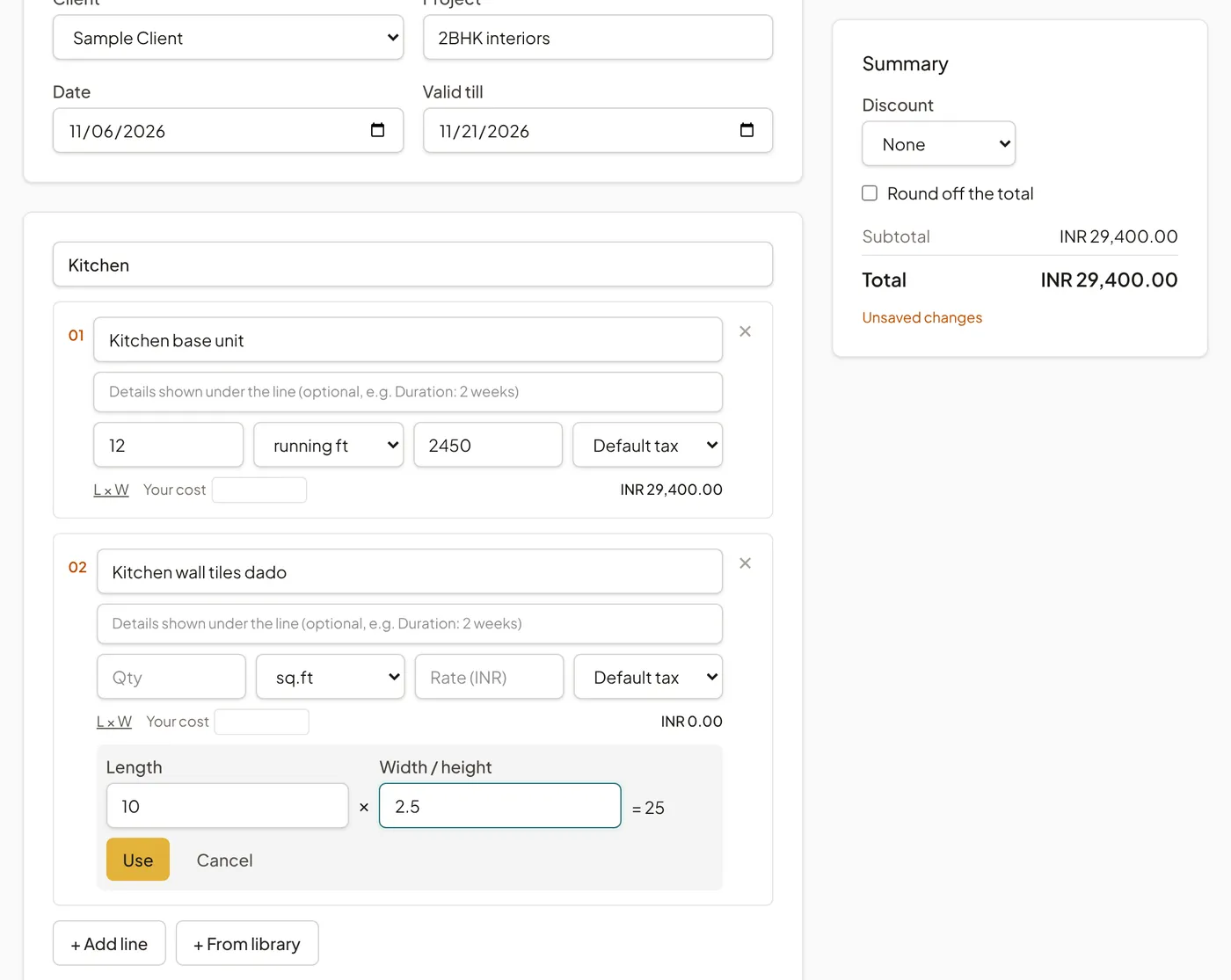
Your cost lets you note what the line costs you, so you can check your margin. It is never shown to your client.
3. Add items from your library
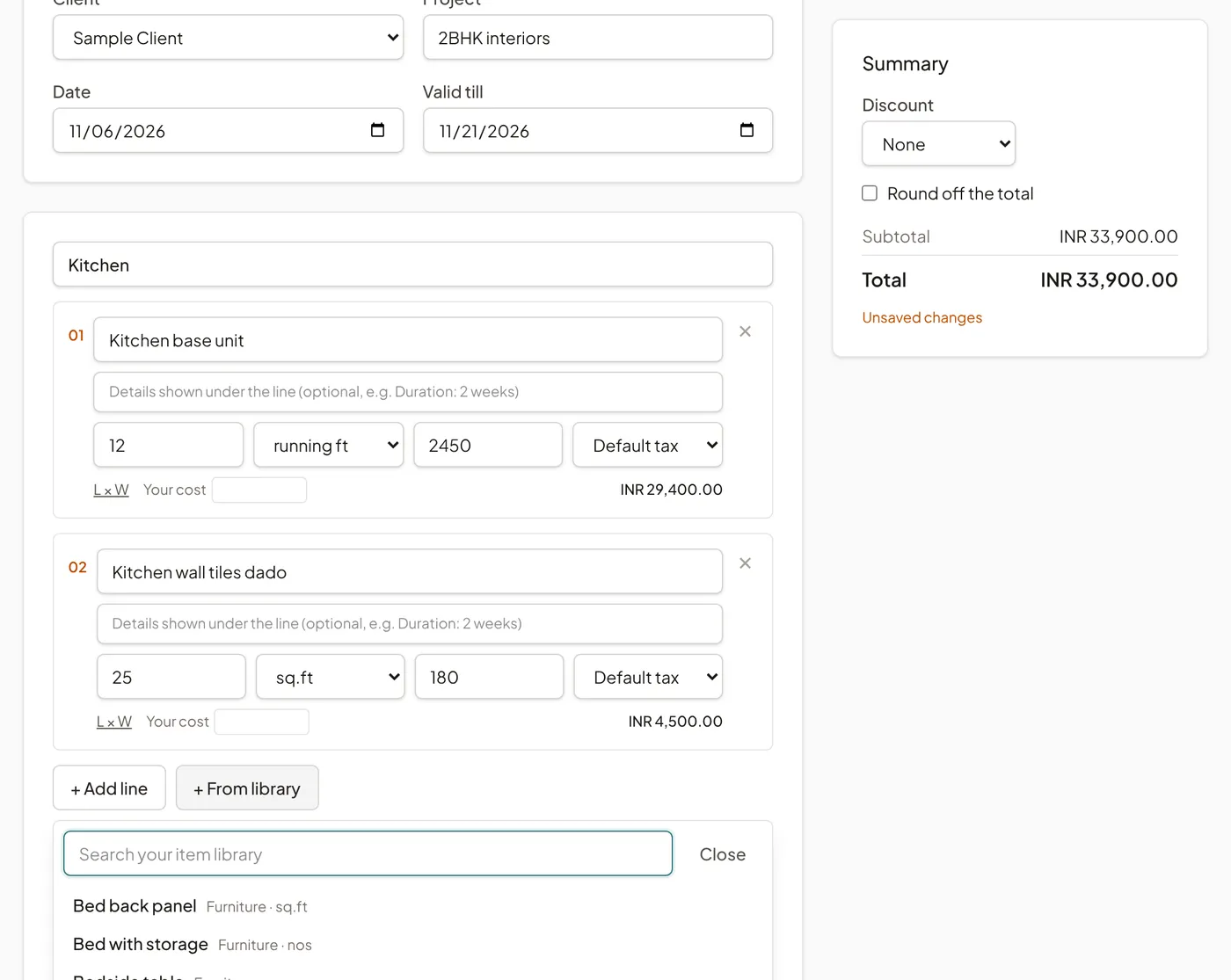
Choose + From library, search your item library and pick an item. Its name, the description your client sees, the unit, your rate and its tax profile are copied into a new line, so you only need to enter the quantity. Changing the line afterwards does not change the item in your library.
4. Set the payment schedule, discount and terms
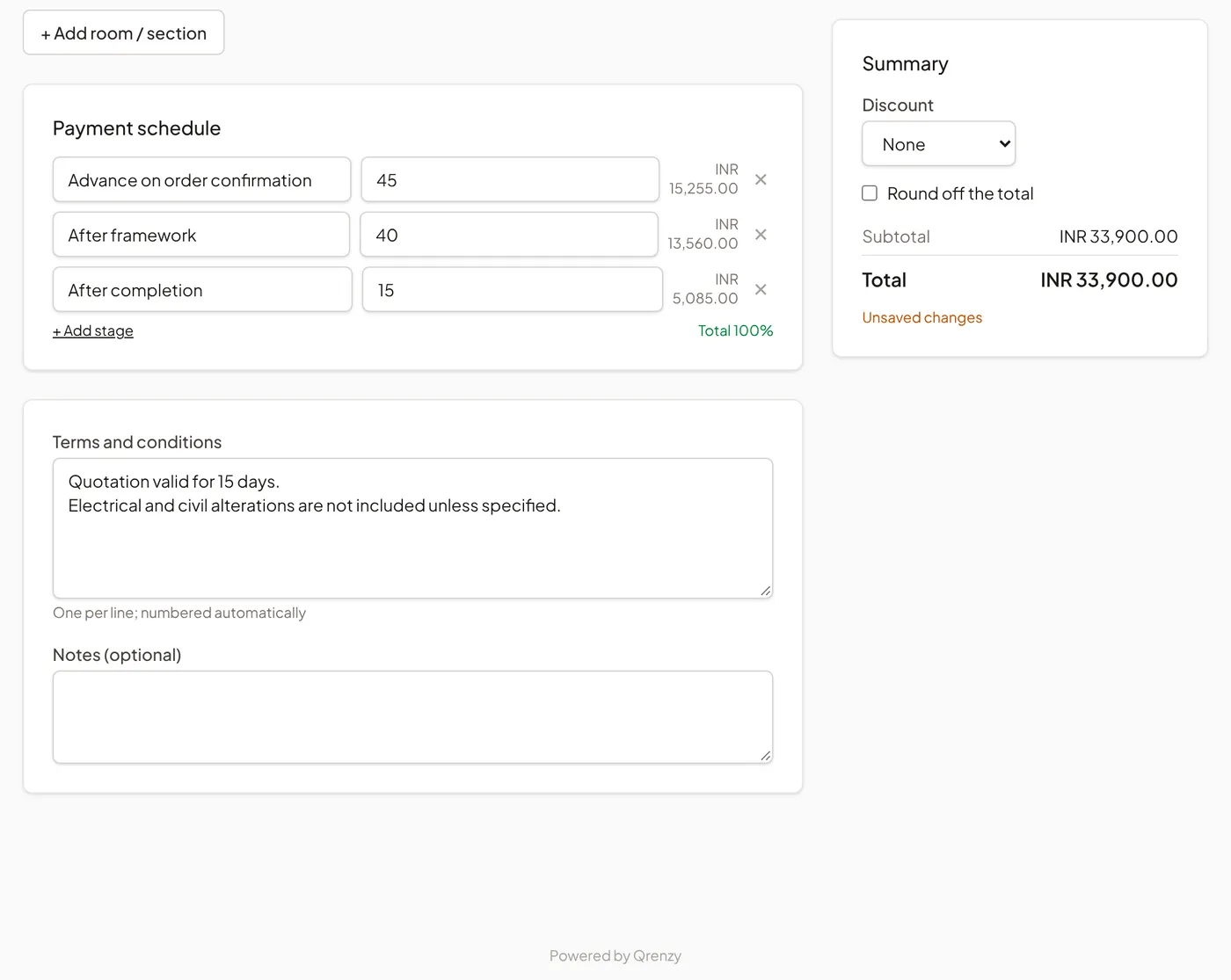
Payment schedule starts with the default stages from your quotation design and shows the amount of each stage. Change the names or percentages for this client, use + Add stage for another stage, and make sure the total shows 100%. Stage amounts always add up to the quotation total exactly.
In Summary, choose a Discount as a percentage or a fixed amount, and tick Round off the total if you want a round figure. The round-off is shown as its own line, so the arithmetic stays visible.
Terms and conditions are copied from your defaults; edit them for this client if needed. Write one term per line and they are numbered for you. Notes is for anything else you want printed.
5. Save and preview
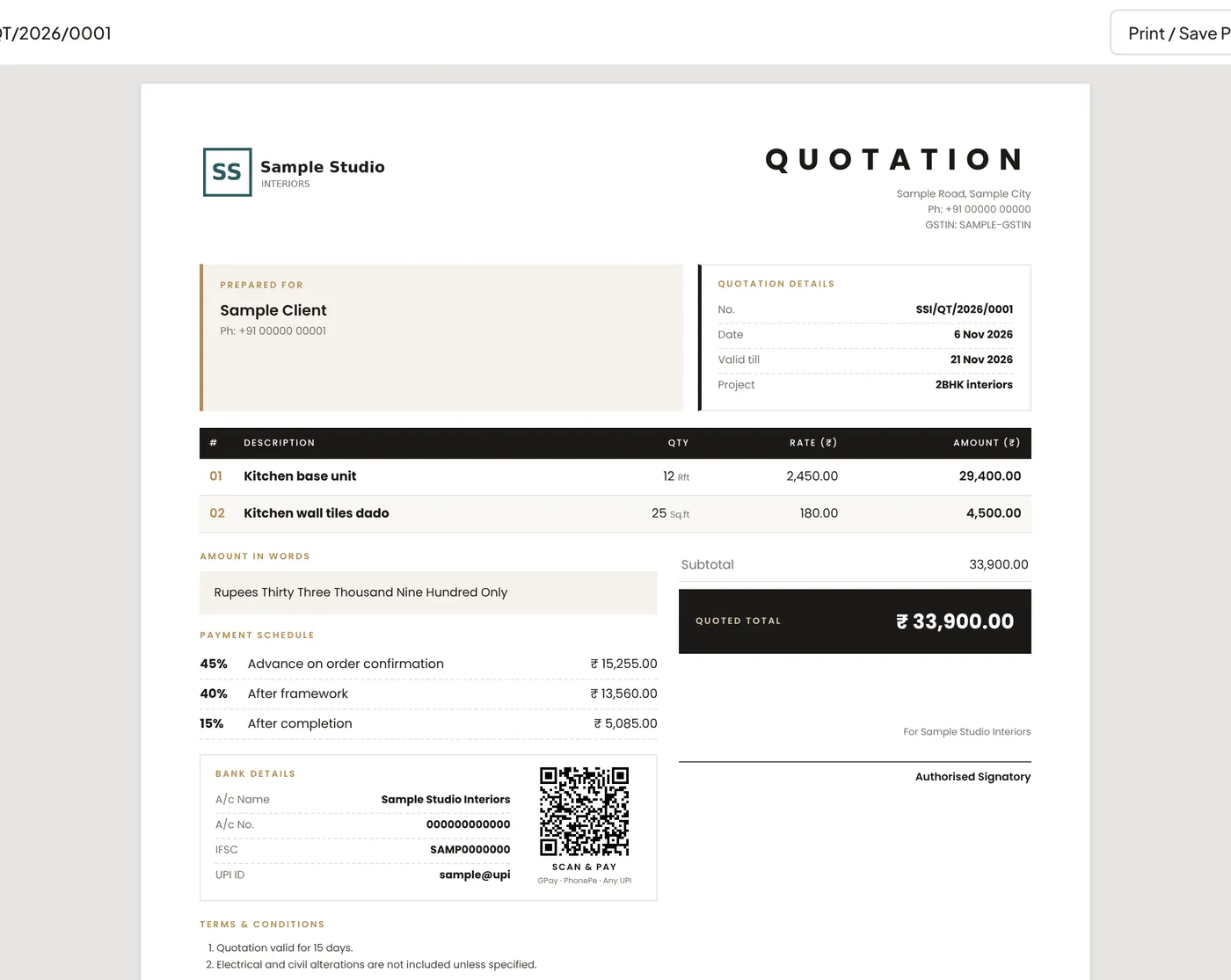
Choose Save draft. A draft is only visible to your firm, and you can change it as often as you like. Then choose Preview to see exactly what your client will get. Preview is available once the draft is saved. From the preview, Print / Save PDF opens your browser’s print window, where you can choose Save as PDF.
A draft you no longer need can be removed with Delete. Sent quotations cannot be deleted, so your history stays complete.
How we check the arithmetic
Before the first release we rebuilt a real quotation from an interior firm line by line and confirmed that the subtotal and every payment stage matched the original to the paisa. Amounts are stored in the currency’s smallest unit rather than as decimals, so a total never drifts by a paisa or a baisa, and those checks run again as automated tests on every change.
Next
When the quotation is right, send it on WhatsApp.